Message Actions
Every message in Collab has a menu of actions. To open it, click the + button under the sender’s profile picture, or right-click the message.
The Message Menu
| Action | What it does | Who sees it |
|---|---|---|
| React | Opens the Add Reaction emoji picker | Everyone except channel Viewers |
| Copy | Copies the text you selected, or the whole message if nothing is selected, with its formatting | Everyone |
| Edit | Opens the message in the editor. See Editing Messages | Your own messages |
| Reply | Opens the message’s thread in the Replies panel | Everyone except channel Viewers |
| Read | Reads the message aloud in your chosen voice. The item changes to Stop while it plays | Everyone |
| Info | Opens Message Info, whose Associations section lists the chats, files, messages, channels, and tasks linked to the message. See Associations | Everyone |
| Delete | Deletes the message | Your own messages, and in a channel, Admins on any message |
In Message Info, any member of a direct message or group chat can link or unlink items. In a channel, Members and Admins can.
You can also click someone’s profile picture or an @mention in a message to open their profile, and click a Pentos file link to preview the file in place.
Replies and Threads
Replies keep side conversations out of the main message list.
- Start a thread: Click Reply in the message menu. The Replies panel opens on the right with the original message at the top, the replies below it, and a Reply in thread… box at the bottom. Close it with the X, the Esc key, or by clicking outside the panel.
- Find a thread: Replies don’t appear in the main conversation. Under a message with replies you see the profile pictures of up to three people who replied, the number of replies, and when the last one was sent, for example 3 replies and Last reply 5 mins ago. Click it to open the thread.
- One level only: Replies can’t have their own threads, so Reply doesn’t appear for messages inside the Replies panel.
- Acting on replies: You can react to, copy, edit, read aloud, view info for, and delete replies from the panel. To react to, edit or delete the original message, use its menu in the main conversation.
- Attachments: Replies can’t carry files. See Attachments.
- Notifications: When you reply, the author of the original message is notified, and so is anyone you mention. Other members aren’t. Clicking a reply or mention notification opens the thread.
Channel Viewers can open threads and read replies, but the reply box is locked for them. It is also locked in a direct message after the other person has left.
Reactions
Reactions let you respond with an emoji without writing a reply.
- Add a reaction: Click React in the message menu and pick an emoji.
- See reactions: Each emoji appears as a badge under the message with a count. Hover over a badge to see who reacted.
- Join or remove: Click a badge to add the same reaction. Click a badge you’ve already used to remove your reaction.
- Add another emoji: Once a message has reactions, click the smiley Add reaction button next to the badges.
You can add several different emoji to one message, each once. The author of the message gets a New Reaction notification, unless you are reacting to your own message or they have the conversation open. If you remove your reaction, that notification is removed too.
Channel Viewers can’t add reactions. They still see the badges, and can remove a reaction they added before they became a Viewer.
Mentions
Type @ in the message box to mention someone. A mentioned member gets a You were mentioned notification with a preview of your message. See Sending Messages for picking people and mentioning someone who isn’t a member.
Deleting Messages
You can delete your own messages in any direct message, group chat, or channel. Channel Admins can also delete anyone’s message in their channel.
- Click the + button under the profile picture next to the message, or right-click the message.
- Click Delete.
- In Confirm Deletion, click Delete Message. This can’t be undone.
The message disappears for everyone right away.
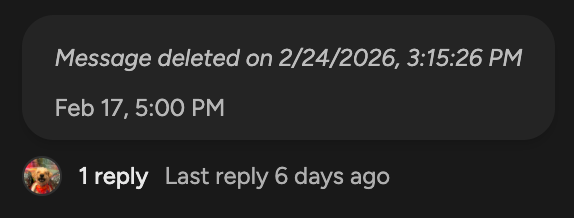
If the message has replies, it isn’t removed completely, so the thread stays together. Its text is replaced with Message deleted on and the date and time, and the replies stay available. Its attached files stay on it. Anyone else who has the conversation open at that moment sees the whole message disappear; the placeholder shows once they reopen the conversation.
Messages With Attachments
If the message has files attached, the confirmation tells you how many. People who were members when the message was sent keep access to its files. People who joined later lose access to files they could only open through that message, unless the message has replies. To stop sharing a file, change its access in Files. See Attachments.