Usage Panel
The Usage panel gives you a clear view of how you’re using Pentos: how many chats and messages you’ve sent, how many tokens have been consumed, the estimated energy, CO₂, and water behind your AI conversations, which features you rely on, and how much ran through your own API keys. It covers everything you do across regular chats, AI Assist, and the AI Sidebar.
Where to Find It
Open Settings, select Chats from the left sidebar, and click the Usage sub-tab. Usage is the default tab on the Chats settings page.
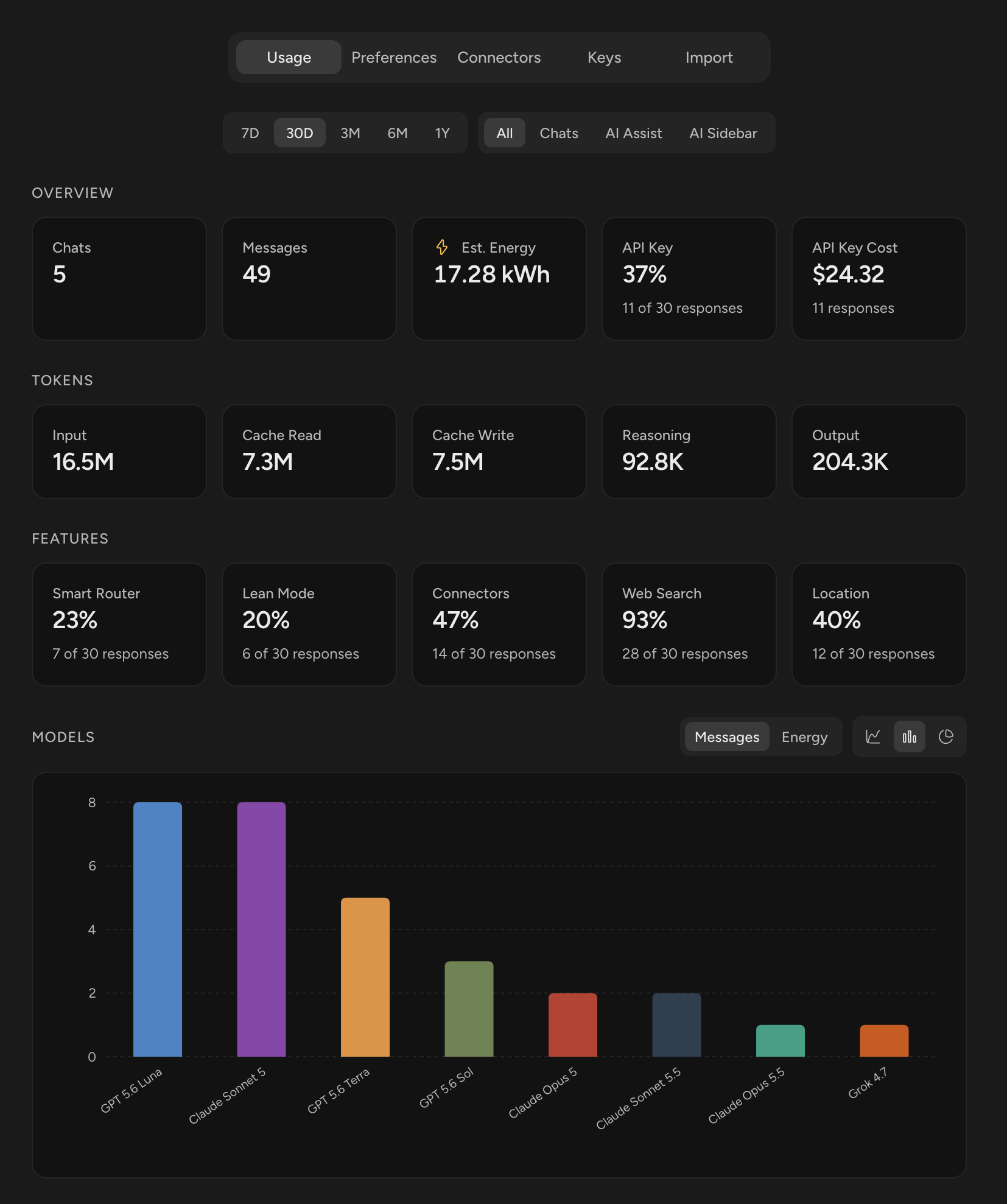
Time Range and Source
The selectors at the top let you choose:
- Time range: 7D, 30D, 3M, 6M, or 1Y.
- Source: All, Chats, AI Assist, or AI Sidebar.
Every card and chart on the page updates when you change either one.
Overview
- Chats: The chats you created in the selected range that still exist, plus your AI Assist requests and AI Sidebar conversations.
- Messages: Your messages and the AI’s responses in that range, including AI Assist and AI Sidebar.
- API Key: The percentage of AI responses that ran on your own API key, with the count shown below (for example, “0 of 64 responses”).
- API Key Cost: The total estimated cost of the responses that ran on your own API key, in USD, based on each provider’s published pricing. Images made with your key aren’t included.
Environmental Impact
- Est. Energy: The estimated energy consumed by all AI responses in range.
- Est. CO₂: The estimated carbon footprint of those responses, at the grid average where each one was generated.
- Est. Water: The estimated water behind those responses: data-center cooling plus the water used to generate the electricity.
Click any of the three to open the Environmental Impact view. See Energy Usage for how estimates are calculated.
Environmental Impact View
The view uses the same time range and source as the panel, and you can change the time range from inside it.
- Estimated Energy: Your total, with a switch for the unit (Auto, kWh, Wh, J, or MJ).
- Estimated CO₂ and Estimated Water: Shown side by side.
- Roughly equivalent to: Four everyday comparisons: miles driven, iPhone charges, minutes of video streaming, and glasses of water (250 mL each).
Tokens
- Input: Tokens sent to the AI, including your prompts and conversation history.
- Cache Read: Tokens served from the provider’s prompt cache, which lowers cost and energy on follow-up messages.
- Cache Write: Tokens written to the provider’s cache so they can be reused later.
- Reasoning: Tokens used for internal “thinking” by models that support reasoning.
- Output: Tokens generated by the AI in its responses.
Some cells (for example, Cache Write) may show zero if the providers you used did not write to or report cache activity for your messages.
Features
The share of your AI responses that used each feature, with the count shown below:
- Smart Router: Responses where the Smart Router picked the model.
- Lean Mode: Responses produced in Lean Mode.
- Connectors: Responses with Connectors turned on.
- Web Search: Responses with Web Search turned on.
- Location: Responses that shared your approximate location.
Models
The Models section shows how your usage was split across the AI models you used in the selected range. Switch between Messages, Energy, CO₂, and Water to rank models by how many responses they produced or by their estimated energy, CO₂, or water. Each option shows its own top 10. Use the icons in the top-right to switch views:
- List: Each model’s share, with a ranked list.
- Bar: Each model’s total side by side.
- Pie: Each model’s share of the total.
Notes
- Deleting keeps your history: Token, energy, CO₂, water, cost, and feature figures come from a record of every AI response that is kept when you delete a chat or message, so deleting never lowers them. The Chats and Messages counts only include chats and messages that still exist.
- Refreshing: The panel keeps each time range’s results for about a minute to stay fast, so a response you just received may take up to a minute to appear.