Chat Objects
Pentos supports rich content objects inside your messages: tables for structured data, codeblocks for syntax-highlighted code, and live previews the AI can build for you.
Tables
Tables can be added and edited in your own messages and in AI responses.
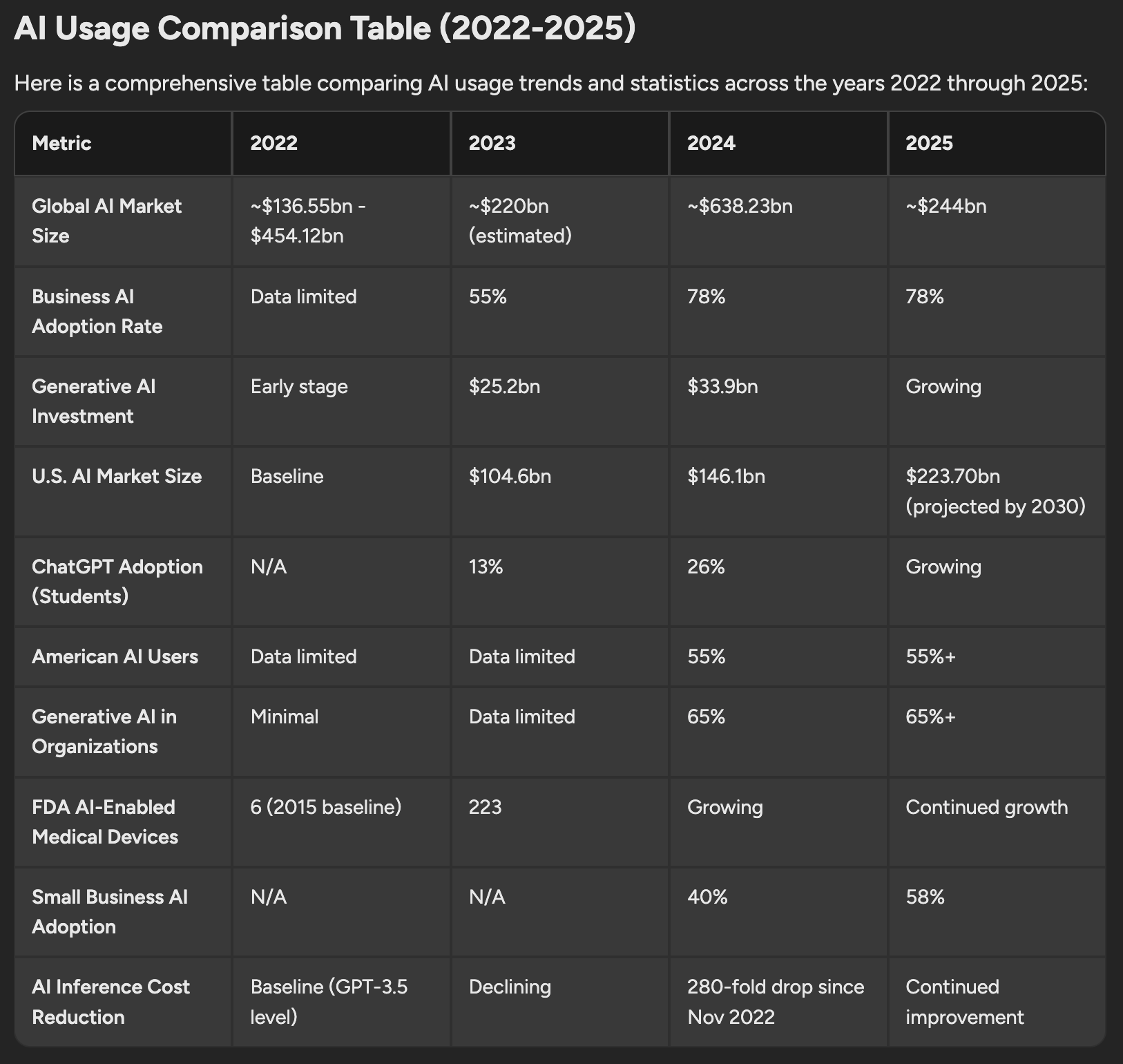
Adding a Table
- Add menu: Click + in the chat input box, open Add, and select Add a Table.
- Right-click: Right-click in the chat input box or the editor and select Insert Table.
Once added, you can:
- Type: Type content directly into any cell.
- Change rows and columns: Right-click inside the table to add a row or column before or after the current one, delete a row or column, copy the table, or delete it.
- Resize: Drag a column’s border to change its width.
If a table is wider than the chat area, scroll horizontally to see all of its columns.
Editing Tables
If you edit a message that contains a table, the full table structure is preserved in the editor. You can change cell contents, add or remove rows and columns, change column widths, and apply formatting within individual cells.
Codeblocks
Codeblocks can be added to your messages and appear automatically when the AI writes code.
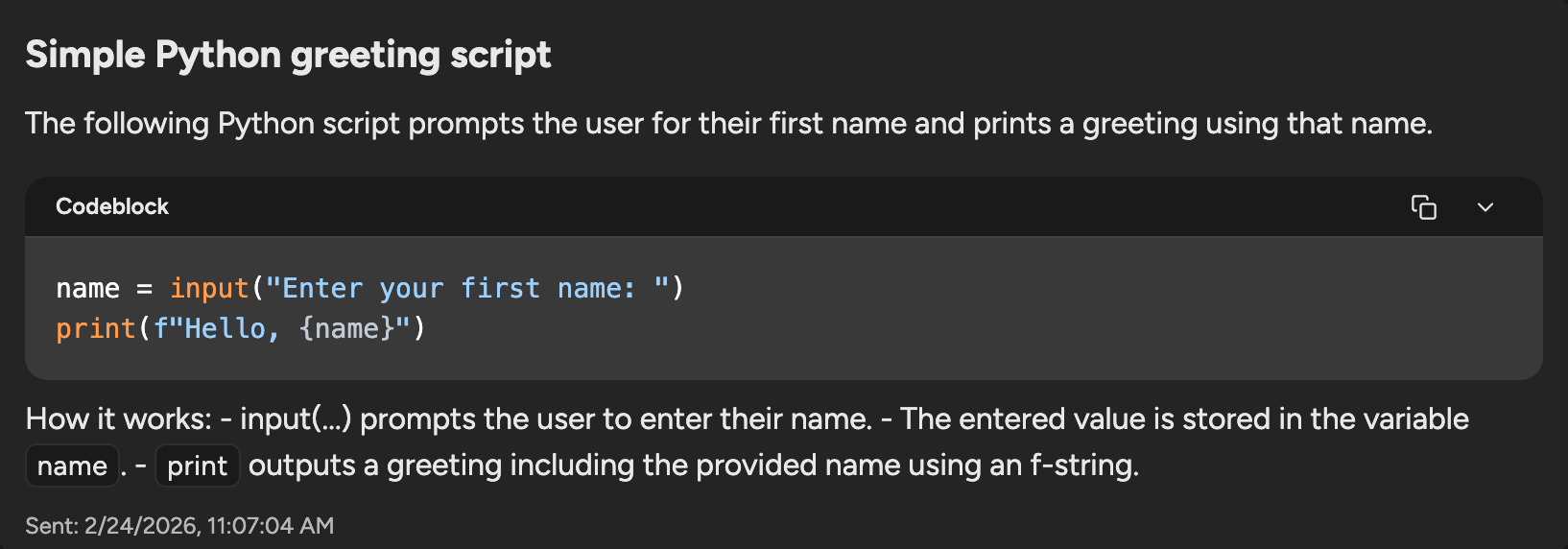
Adding a Codeblock
- Add menu: Click + in the chat input box, open Add, and select Add a Codeblock.
- Right-click: Right-click in the chat input box or the editor and select Codeblock.
- Type it: Type three backticks (
```) at the start of a line, then press Space or Enter. Add a language name after the backticks for syntax highlighting, for example```python.
The language appears in the codeblock’s header. A codeblock without a language is highlighted as JavaScript.
Codeblock Actions
Each codeblock has these buttons in its header:
- Preview: Open the code in the code editor on its preview tab.
- Open in Editor: Open the code in the code editor.
- Copy: Copy the entire codeblock to your clipboard. A check mark confirms the copy.
- More: Long codeblocks are shown at a fixed height with their own scroll bar. Click More to make the codeblock taller, and click it again to shrink it back.
Supported Languages
Syntax highlighting covers 22 languages: JavaScript, TypeScript, Python, Java, C, C++, C#, Go, Rust, Ruby, Swift, Kotlin, HTML, CSS, SCSS, Less, JSON, YAML, SQL, GraphQL, Markdown, and Bash.
Inline Code
Short code references within a sentence, like a function name or variable, are rendered as inline code with a distinct background, making them easy to distinguish from regular text. To add inline code yourself, select the text, right-click, and choose Inline Code.
Live Previews
When a visual helps, such as a mockup or a card, the AI can build a live preview right in its response. The preview appears in its own panel under the title the AI gave it.
- Show code: Switch from the live preview to its code, and back with Show preview.
- Copy code: Copy the preview’s code to your clipboard.
While the AI is still writing a preview, a placeholder shows until it is ready. Previews run with strict safety limits: they cannot run scripts, embed other pages, or submit forms.