Connectors
Connectors (MCP) let the AI use your data and take actions in the apps you already use, directly from a Pentos chat. Once an app is connected, the AI can pull in the right information and act on your behalf without you having to switch tabs or copy and paste.
Connectors need a paid plan (Plus and above). On Free, turning on Connectors opens the upgrade options, and so does each app’s connect button, which reads Upgrade. Apps you connected on a paid plan stay connected if your plan returns to Free, but the AI cannot use them until you upgrade again. Web search works on every plan.
While Connectors are on with at least one app enabled, each response costs 1 more point, whether or not the AI uses an app.
A few examples of what this unlocks:
- “Summarize my last 10 emails and flag anything urgent.”
- “Create a GitHub issue for the bug we just discussed.”
- “What meetings do I have tomorrow afternoon?”
- “Send a Slack message to the design channel with the summary above.”
Supported Apps
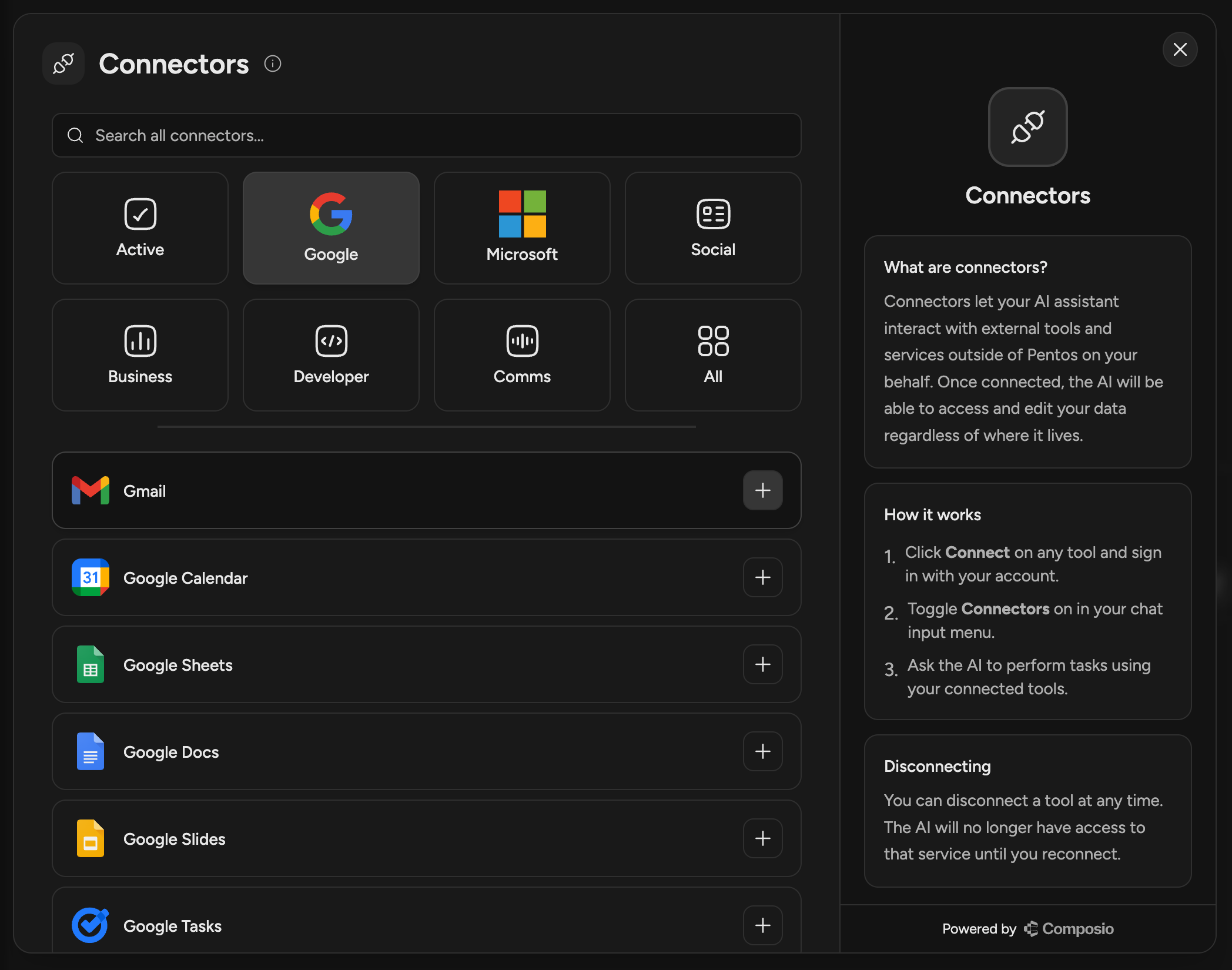
Pentos supports 1000+ Connectors via our partners at Composio. Apps are organized into eight categories inside the Connectors modal so you can find what you need quickly.
| Category | Examples |
|---|---|
| Active | Your currently connected apps |
| Gmail, Google Calendar, Google Drive, Google Docs, Google Sheets, Google Slides, Google Meet | |
| Microsoft | Outlook, Microsoft Teams, OneDrive, SharePoint, Excel, Dynamics 365 |
| Social | LinkedIn, X (Twitter), Facebook, Instagram, Reddit, TikTok, YouTube |
| Business | HubSpot, Salesforce, Notion, Asana, Jira, Trello, Airtable, Stripe, Shopify, Mailchimp |
| Developer | GitHub, GitLab, Bitbucket, Supabase, Sentry, Datadog, Vercel, Snowflake |
| Comms | Slack, Zoom, Discord, Twilio, WhatsApp, Telegram, Calendly |
| All | The full library of supported Connectors |
Connecting an App
There are two places to open the Connectors modal:
From the Chat Input Menu
- Open the chat input menu (the + button in the bottom left corner of the chat input area).
- Hover over the Connectors row to open its menu.
- Click Manage to open the Connectors modal.
From Settings
- Open Settings and select Chats from the left sidebar.
- Click the Connectors tab.
- Click Add Connector to open the Connectors modal.
Inside the Connectors Modal
- Pick a category, or use the search bar to find an app by name.
- Select the app and click Connect.
- You will be redirected to that app’s official sign-in page to authorize access.
- Once authorized, you will be redirected back to Pentos and the app will appear under Active.
Using Connectors in Chats
Once an app is connected, turn Connectors on in the chat input menu. From there, simply chat as you normally would. The AI automatically determines when a Connector is needed for your request and calls the right tool on your behalf, no special syntax required.
Before the AI takes an action that changes something, like sending an email or creating an issue, it asks for your approval. Reading and searching run without asking. See Approving Actions.
Connectors are supported on most Pentos models, including Claude, GPT, Gemini, Grok, and Mistral. A small number of models do not support Connectors yet. If you select one of those models, the Connectors option is unavailable and the AI responds normally without tool access.
Choosing What the AI Can Use
- Apps for this chat: In the chat input menu, hover over Connectors and turn individual apps on or off. Your choice carries over to the next messages in that chat.
- Tools within an app: In the Connectors modal, select a connected app to turn its individual tools on or off. The AI only sees the tools you have left enabled.
Setting a Default
To have Connectors on for every new chat by default, open Settings, select Chats from the left sidebar, open Preferences, and turn on Connectors under AI Settings. The change saves immediately.
Reconnecting an App
If an app’s access expires or is revoked, Pentos shows a notice that the app needs to be reconnected. Open the Connectors modal and sign in to the app again.
Privacy and Security
You are always in control of which apps the AI can reach.
- You authorize directly with the app: When you click Connect, you sign in with the app itself (Google, GitHub, Slack, and so on) and grant the permissions it asks for. Pentos never sees your password.
- Pentos never stores your credentials: We only store a secure reference to the connection, not the underlying API keys or OAuth tokens for those apps.
- Tools only run when you opt in: The AI only reaches a connected app when Connectors is on for that message and the AI determines a tool is needed to answer you. With Connectors off, no app data is requested and no actions are taken.
- Actions ask first: Anything that creates, sends, updates, or deletes waits for your approval.
- Your connections are yours: In a shared chat, the AI uses only the sender’s connected apps, and only the sender can see the details of what ran.
- Powered by Composio: Pentos delivers Connectors through our partners at Composio, an OAuth and tool-execution platform that supports 1000+ apps. Composio handles the OAuth handshake and API calls on Pentos’s behalf.
Disconnecting an App
To revoke access at any time:
- From the Connectors modal: Select the app under Active, click Disconnect, and confirm.
- From Settings: Open Settings, select Chats, open the Connectors tab, click Disconnect next to the app, and confirm.
Disconnection is immediate. The AI will no longer be able to read from or act on that app until you reconnect it.