Editing Messages
You can edit any message in a chat, including your own messages and AI responses, on your own or in real time with other people. Pentos uses one editor across private chats, shared chats, and documents in Files. It includes rich text formatting, live collaboration, inline comments, and two AI editing tools: AI Assist and the AI Sidebar.
Editing never deletes the original. Pentos saves your edited version alongside it, and the AI uses the edited version in later messages.

Opening the Editor
Click the + button beneath the AI provider’s logo to open the message menu and select Edit. You can also right-click anywhere on a message to open the same menu.
If you can’t edit the message, for example as a Viewer in a shared chat, the menu shows View instead and the editor opens read-only. Select Comment to open the editor with the comments panel ready.
Formatting
Inside the editor you have access to all of Pentos’s authoring tools:
- Rich text formatting: bold, italic, underline, lists, headings, colors, links, and more.
- Tables and codeblocks with syntax highlighting.
- Emoji and math symbols.
Real-Time Collaboration
Every chat message opens in a live editing session. In shared chats, anyone with edit access can open the same message and edit alongside you in real time, with no refresh.
- Live cursors: You see every other editor’s cursor and selection in their own color, with their name on the caret. Pick your own color from User Profile > Preferences > Cursor Color.
- Avatar stack: A row of avatars at the top of the editor shows who is editing, up to six at a time.
- Conflict-free merging: Concurrent edits merge automatically without overwriting each other.
- Shared save state: When any collaborator clicks Save, the Unsaved changes indicator clears for everyone in the editor.
- Resilient connection: Brief network drops reconnect automatically. If the live session cannot be established within a few seconds, the editor switches to solo mode so you can keep working.
In a private chat you are the only person in the session.
Comments
You can leave inline comments on any selection of text, similar to Google Docs. Commenting needs permission to edit the message, so in a shared chat that means Editor access or higher.
Adding a Comment
- Select the text you want to comment on.
- Click Comment in the menu that appears over your selection, or right-click and choose Add Comment.
- Type your comment in the comments panel that opens on the right and send it.
The selected text is highlighted and the comment appears in the panel for every collaborator. Comments stay attached to their text as the message changes around them.
Threads, Reactions, and Mentions
- Threaded replies: Reply to any comment to start a thread.
- Reactions: Add emoji reactions to any comment or reply.
- Mentions: Type @ to mention a collaborator. Mentioned people get a notification.
- Resolve: Resolve a comment when the discussion is done. Resolved comments are marked Resolved, shown crossed out, and move to the bottom of the panel. You can Reopen them later.
- Delete: Deleting a comment is permanent. If it has replies, it stays in place as Message deleted on and the date, so its replies can still be read and answered.
Navigating Comments
- Click a highlight in the editor to jump to its comment in the panel.
- Click a comment card in the panel to select its text in the editor.
- Click the reply count on a card to open the thread.
Viewers can read comments but cannot create or reply to them. Only a comment’s author can edit its text.
AI Sidebar
The AI Sidebar opens beside the editor and lets you ask the AI to make changes for you. It works like a focused chat that knows about the message you are editing.
Opening the AI Sidebar
Click the AI button in the editor’s toolbar (its tooltip reads AI Assist) to open the sidebar. It has its own model selector, effort, and chat controls (Personalize, Web Search, Connectors, and so on), plus quick actions.
Quick Actions
| Action | What it does |
|---|---|
| Refine | Tightens wording, removes redundancy, and improves flow. |
| Expand | Elaborates on key points with more depth and context. |
| Shorten | Removes filler while keeping all key information. |
| Fix Grammar | Corrects grammar, spelling, and punctuation only. |
| Translate | Starts a “Translate to” request; add the language you want. |
Custom Prompts
You can also type your own request, for example “Make this sound friendlier”. The AI proposes edits and the editor applies them highlighted. Click the check mark to keep them or the X to undo them. If the AI’s edit doesn’t match the current text, Pentos tells you instead of changing anything.
Messages in the AI Sidebar use points like any other chat message.
AI Assist
AI Assist is a lighter, inline tool for quick, single-shot edits without leaving your selection.
Opening AI Assist
- Selection menu: Select text and click the AI Assist (sparkle) button in the menu that appears over it.
- Right-click: Choose AI Assist from the editor’s right-click menu.
- Chat input: Right-click in the chat input box and choose AI Assist to rewrite a draft before you send it.
How It Works
AI Assist opens a small popover with the same quick actions as the AI Sidebar (Refine, Expand, Shorten, Fix Grammar, and Translate) plus a free-form prompt. It rewrites your selection, or the whole message if nothing is selected, and types the new text into the editor. The changed text is highlighted so you can see exactly what changed. Click the check mark to keep the edit or the X to undo it.
AI Assist is fast because it uses a lightweight model and doesn’t read the rest of the conversation. That makes it the best choice for a single targeted edit. Each AI Assist request currently uses 1 point.
Saving Changes
When you’re done editing, click Save to apply your changes. The editor stays open after saving so you can keep editing. Unsaved changes shows at the top while you have changes that aren’t saved. To leave, close the editor with the X button or Escape.
Comparing Versions
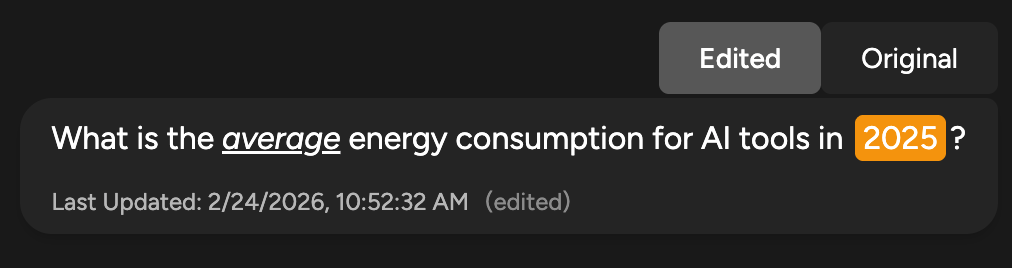
After a user message is edited, two tabs appear above it: Edited and Original. The edited version is shown by default, and you can switch between them at any time. An edited AI response shows the edited version without tabs.
Editing in Shared Chats
In shared chats, what you can do depends on your role:
- Viewer: Can read messages and comments, but cannot edit messages or add comments.
- Editor: Can edit any message, including AI responses, and add comments and replies.
- Admin and Owner: Full editing access, plus managing the chat’s members.