Sending Messages
Sending a message on Pentos works like any chat app, with a few extra controls built into the input area. Choose your model, type your message, set your controls, and click Send. The AI streams its response back to you in real time, and both messages are encrypted and saved to your account.
Starting a New Chat
To start a new chat, click New Chat at the top of the left sidebar, or click the Pentos logo above it. When you send your first message, Pentos creates the chat and names it from what you wrote. You can rename the chat at any time.
Creating a Message
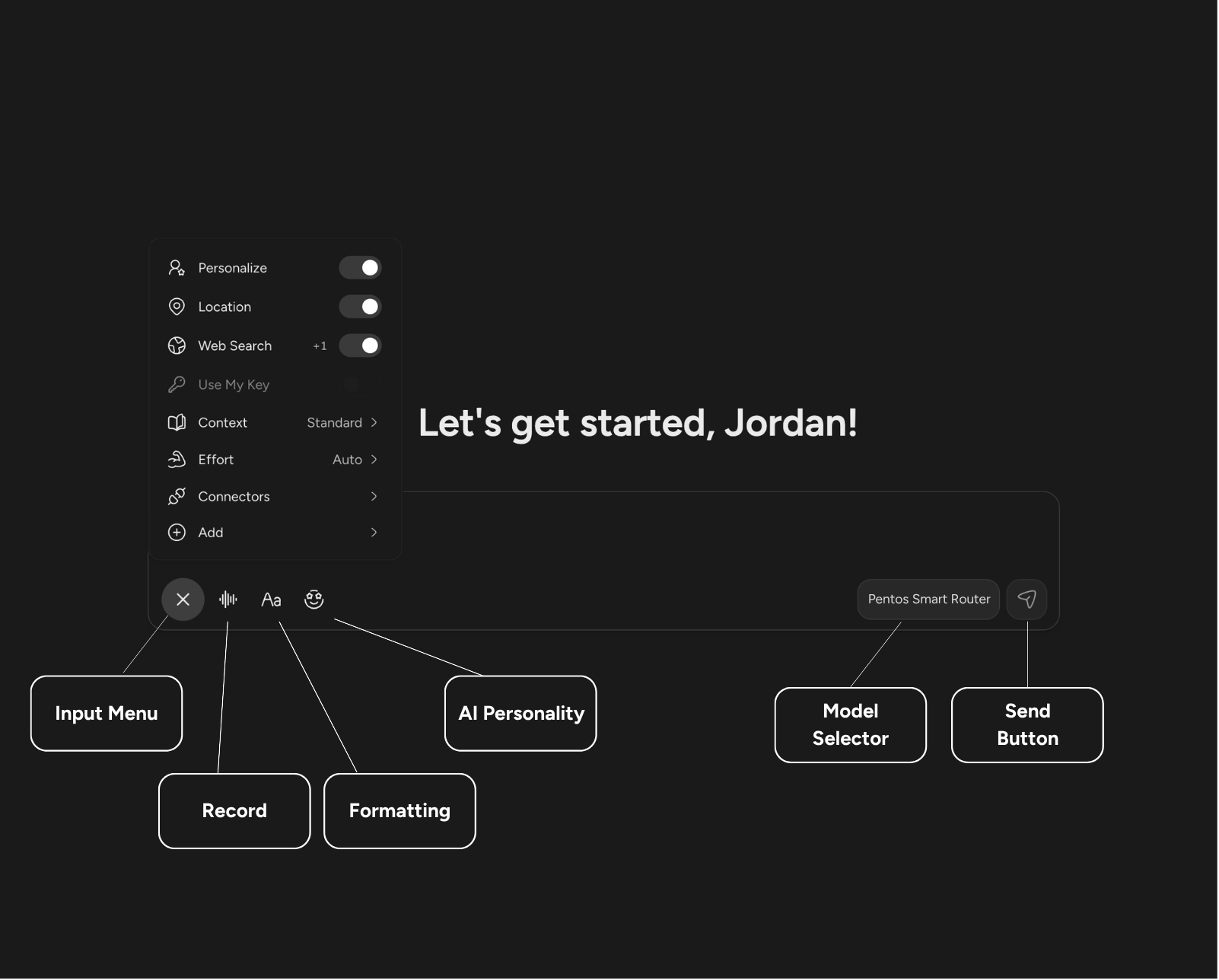
Before you send, you have several tools at your disposal:
- Choose a Model: Pick a specific AI model or keep your default. See Choosing a Model.
- Attachments: Add files, images, or documents for the AI to read. See Attachments.
- Formatting: Use the formatting toolbar for rich text, lists, math symbols, and emoji. You can also add tables and codeblocks from the input menu or by right-clicking in the editor.
- Chat Controls: From the + input menu, choose a context mode (Lean, Standard, or Max) and an effort level, and turn Personalize, Location, Web Search, Use My Key, and Connectors on or off. With Personalize on, Pentos also shares your saved Memory. See Chat Controls.
- AI Personality: Pick an AI Personality to adjust the tone and length of the response.
- Mentions: Type @ to mention another Pentos user. Mentioned users with access to the chat get a notification. If someone you mention doesn’t have access yet, Pentos offers to share the chat with them as an Editor.
- Record: Click the record button to speak your message. Pentos transcribes it into text for you.
Your controls carry over from your last message in the chat, so you only change them when you want something different.
Before You Send
Pentos checks a few things before your message goes out:
- Attachments: Send stays unavailable until every attachment finishes uploading and passes its security scan.
- Points: If a message would cost more points than you have left, the send button shows Not enough points and opens the upgrade options instead of sending.
- Paid features: On the Free plan, Max Mode, Max effort, and Connectors open the upgrade options instead of sending.
- Sending too quickly: If you send many messages in a short time, Pentos asks you to wait a moment.
- Message length: A message can be up to 100,000 characters. For longer text, paste it in: anything over 5,000 characters becomes a file attachment automatically.
Streaming
As the AI responds, its answer appears in real time with a typewriter effect.
The send button changes while a response is in progress:
- Stop: While the AI is still responding, click Stop to end the response. Your message stays; the response is marked as stopped.
- Skip to End: If the AI has finished but the typewriter is still catching up, click Skip to End to show the whole response at once.
Reasoning and Tasks
- Reasoning: The steps the AI takes before answering (its thinking, the tools it uses, and any code it runs) appear in a panel above the answer. When the answer starts, the panel closes to a Reasoning toggle. Click it to see the steps again, including in chats you come back to later.
- Code runs: When the AI runs code, its step shows the code and the results in separate tabs.
- Approvals: If an action needs your approval, its step shows Approve, Always approve, and Deny. See Approving Actions.
- Tasks: For multi-step work, the AI may post a task list in a card at the top right of the chat and tick off each step as it goes. The card fades a few seconds after the last step finishes. To see the plan again, open Message Info for the response.
If You Leave Mid-Response
You can switch chats or close the tab while the AI is still responding. The response keeps generating and is saved to the chat, so it is there when you come back. If you return while it is still in progress, you see it continue live.
If something goes wrong partway through, Pentos tries once more on its own: the reasoning and any partial answer clear, and the response starts over. It does not do this once the AI has taken an action for you, such as sending an email, so nothing happens twice. If the response still fails, it shows an error in the chat. Click Retry to send it again.
Regenerating Messages
Not happy with a response? See Regenerating Messages.