Regenerating Messages
If you aren’t happy with an AI response, you can regenerate it to get a different answer. This is useful when you want an alternative phrasing, a different perspective, or simply a better response.
How to Regenerate
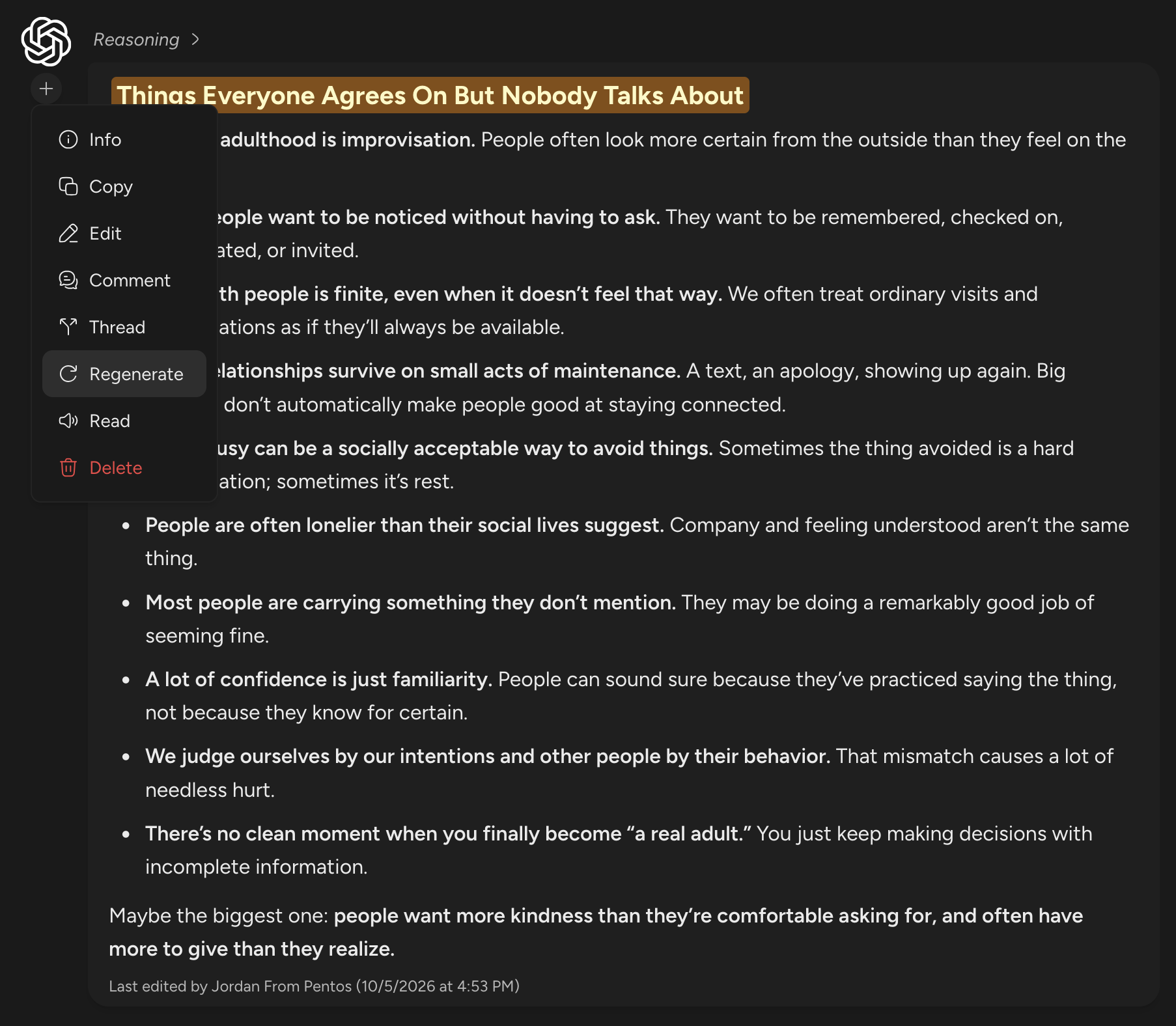
Click the + button beneath the AI provider’s logo to open the message menu and select Regenerate. You can also right-click anywhere on the message to open the same menu.
Pentos sends your original prompt again, with the same attachments and the same earlier conversation. The new response uses the model and chat controls currently selected in the chat input, so you can switch models or change a control before you regenerate. Unless you change them, these match your last message.
When You Can Regenerate
- Latest response only: Regenerate is available on the most recent AI response in the chat.
- Once per response: A response can be regenerated one time. The regenerated version cannot be regenerated again.
- After it saves: Regenerate becomes available once the response has finished saving.
- Editors and above: In a shared chat, you need Editor access or higher.
A regenerated response uses points like any other message.
Comparing Versions
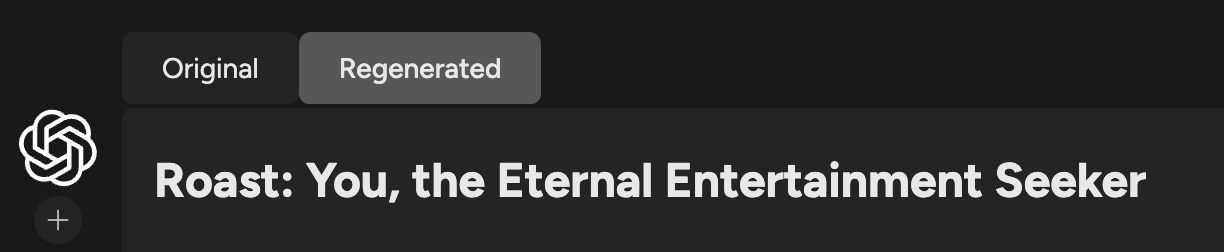
After a message has been regenerated, two tabs appear above it: Original and Regenerated. The regenerated response is shown by default, and you can switch between them at any time.