Chat Actions
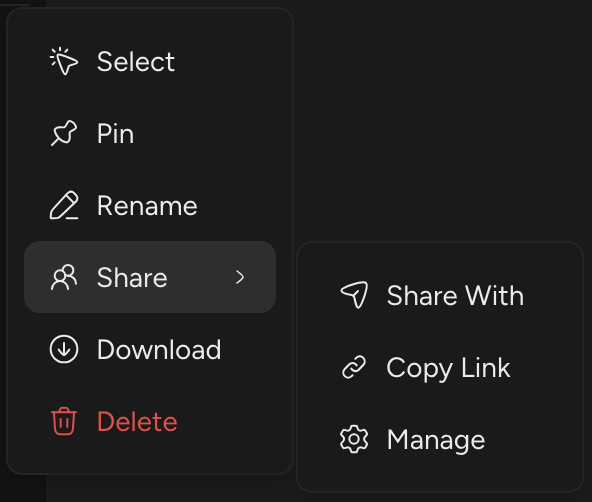
You can select, pin, rename, share, download, and delete any chat from the left sidebar. Hover over a chat and click the three-dot menu to see the actions available to you.
Finding Your Chats
The left sidebar has three tabs:
- New Chat: Starts a new chat.
- Private: Your chats that are not shared, with pinned chats at the top and the rest by most recent activity.
- Shared: Chats shared By Me or With Me, grouped by person. Click a person to see the chats you share with them.
When you share a chat, it moves from Private to Shared > By Me.
Renaming
Every new chat is named automatically from your first message, but you can rename it at any time.
- Hover over the chat in the sidebar.
- Click the three-dot menu and select Rename.
- Type the new title and press Enter to save, or Escape to cancel.
The title updates in the sidebar and at the top of the chat. Titles must be between 1 and 255 characters. You can also rename a chat from the Chat Info panel.
In shared chats, Editors, Admins, and the Owner can rename; Viewers cannot. When a shared chat is renamed, an activity message appears in the chat and everyone else is notified.
If the chat has attached files, its folder in Files is renamed to match.
Pinning
Pinning keeps your most important conversations at the top of their list.
- To pin: Hover over a chat, click the three-dot menu, and select Pin.
- To unpin: Open the same menu and select Unpin. The chat returns to its place by recent activity.
Pinned private chats appear at the top of the Private tab. In the Shared tab, pinned chats appear first in each person’s list. Pinning a shared chat pins it for everyone in the chat, and the others are notified.
Sharing
The Share menu gives you three ways to bring people into a chat. It is available to the chat’s Owner and Admins. Hover over a chat, click the three-dot menu, and hover over Share.
Share With
Share With sends a chat directly to people and gives them access in one step.
- Click Share > Share With.
- Pick a destination from the Friends, Groups, or Channels tab, or use Search to find any Pentos user by name or username.
- Click Share and confirm.
Everyone you share with gets Editor access and a Collab message with a link to the chat. If you share with someone you don’t have a conversation with yet, Pentos starts a direct message with them.
Copy Link
Copy Link copies a link to the chat. Paste it anywhere: in Collab, an email, or another tool. People who already have access can open the chat from the link. Anyone else needs to be added through Share With or Manage first.
Manage
Manage opens the Sharing & Permissions sidebar, where you can see everyone with access, change their role (Viewer, Editor, or Admin), and remove people.
Leaving a Shared Chat
If someone else owns a chat, the menu shows Leave instead of Delete. Leaving removes your access. To get it back, the owner or an Admin has to share the chat with you again.
Bulk Actions
You can pin or unpin, download, and delete (or archive) several chats at once:
- Hover over a chat in the left sidebar and click the three-dot menu.
- Click Select.
- Select the chats you want.
- Click the action you want in the bar at the top of the chat list.